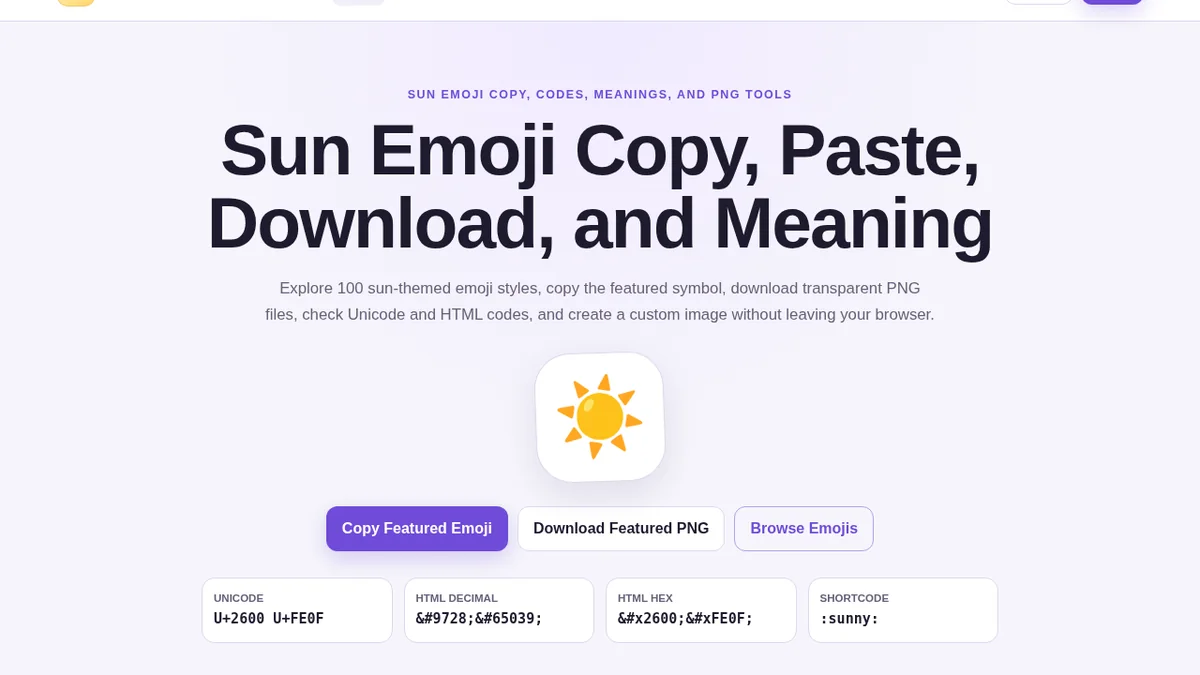
Type the Sun Emoji on iPhone, Android, Windows, Mac, Chromebook, and web editors with practical keyboard steps. This article explains practical context, platform behavior, and reliable ways to use the symbol clearly.
iPhone and iPad
Open a text field, switch to the emoji keyboard, and use the search box to type “sun.” Select the classic sun result. If the emoji keyboard is not visible, add it through Keyboard settings. Copying from this website is an alternative when the search result is hard to locate.
For frequent use, create a text replacement in keyboard settings. Choose a short trigger that is unlikely to appear in ordinary sentences.
Android phones and tablets
Open the keyboard emoji panel and search for “sun,” “weather,” or “bright.” The exact location depends on the keyboard app and Android version. Google’s keyboard, Samsung Keyboard, and other keyboards organize categories differently.
You can also tap Copy Emoji here and paste into any field that accepts Unicode. If the target app shows a box, update the app or system font support.
Windows computers
Press the Windows key and period together to open the emoji panel. Search for sun and select the result. The panel works in most modern text fields. In older desktop applications, copying and pasting may be more reliable.
The displayed artwork follows Microsoft’s emoji design in compatible apps, while some programs use their own fonts.
Mac computers
Open the Character Viewer with the standard emoji and symbols shortcut, then search for sun. Double-click the character or drag it into the document. Copying from a web page also works in most macOS applications.
The artwork usually follows Apple’s emoji style. Plain-text editors may show a monochrome symbol if they use a text font.
Chromebook, Linux, and web editors
Chromebooks often provide an emoji picker through the context menu or keyboard controls, depending on version. Linux support depends on the desktop environment and installed fonts. Web editors generally accept direct Unicode paste.
When typing code, you can use the literal character in a UTF-8 file or insert the HTML entity in markup. Always save the file with UTF-8 encoding.
Typing in documents and design tools
Word processors, spreadsheets, presentation apps, and design editors usually accept direct paste. The appearance can change when the document is opened on another machine because the receiving system may use a different emoji font. Exporting to PDF can preserve layout, while exporting a transparent PNG can preserve the exact local appearance of the symbol.
In coding editors, confirm the file is saved as UTF-8. The character can appear in HTML, CSS content strings, JavaScript text, Markdown, and comments, but support depends on the output font.
Common keyboard problems
If the emoji picker does not open, check operating system shortcuts, keyboard language settings, and app permissions. Some remote desktop sessions intercept system shortcuts. Copy and paste from this site provides a simple alternative.
If the pasted character becomes an empty square, the issue is usually font support rather than a broken code. Update the app, select an emoji-capable font, or use a PNG where text rendering cannot be controlled.
Final takeaway
The Sun Emoji is most effective when its meaning is supported by clear words and appropriate context. Use Unicode for editable text, use the copy controls for convenience, and generate a transparent PNG only when a fixed image is more suitable than live text.